The following chapter will explain the process of exporting and importing data in SmartWEB. This allows for flexible data distribution on different instances of the system, as well as storing content. The procedure is done trough the Admin interface - Dashboard. The selected data is exported and stored in an XML Document that is used to recover the data at a later time via import. The only requirement is:
- administrator rights on SmartWEB.
Exporting Content
Navigate to the admin panel - Dashboard.
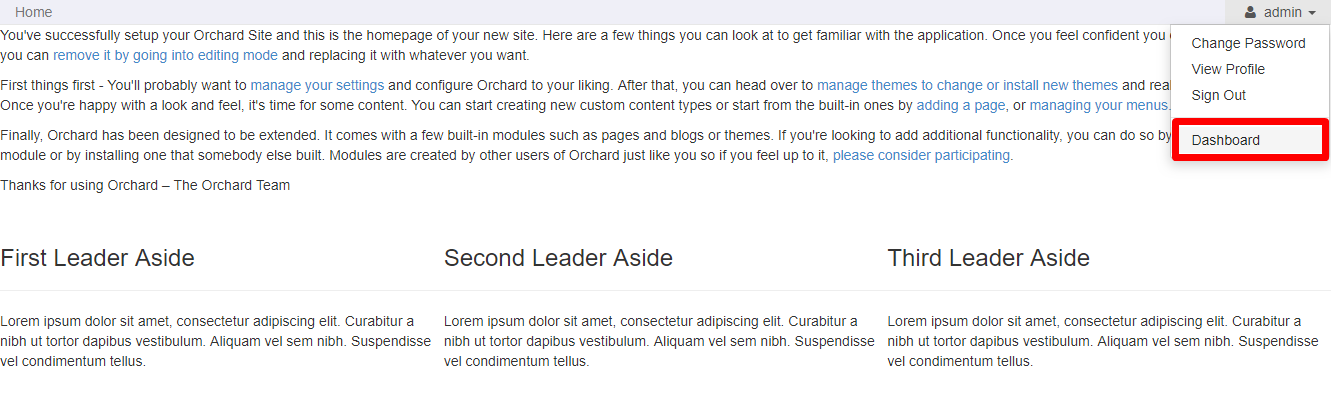
From the menu on left, find and select Import/Export.

Select the Export tab.

On the Export screen you can select the Content Types you want to export, as well specific elements that are part of them, such as:
Metadata- Metadata is the definition of your content types: what parts and fields they have, with what settings.Data- Data is the actual content of your site.
Version History:
- Only Published Versions
- Only Drafts
Attention:
When content is being exported, you can select Metadata and/or just Data. In order for them to be imported correctly at a later date, it is good practice to export them together. In the case where they are separate,
the Metadata should be imported first, and the Data after that. While importing, if there is inactive module data in the files, their contents may not be imported. There is an exception where the data is located in an InfoSet record. In this case when the specific module is enabled, the data will be available.
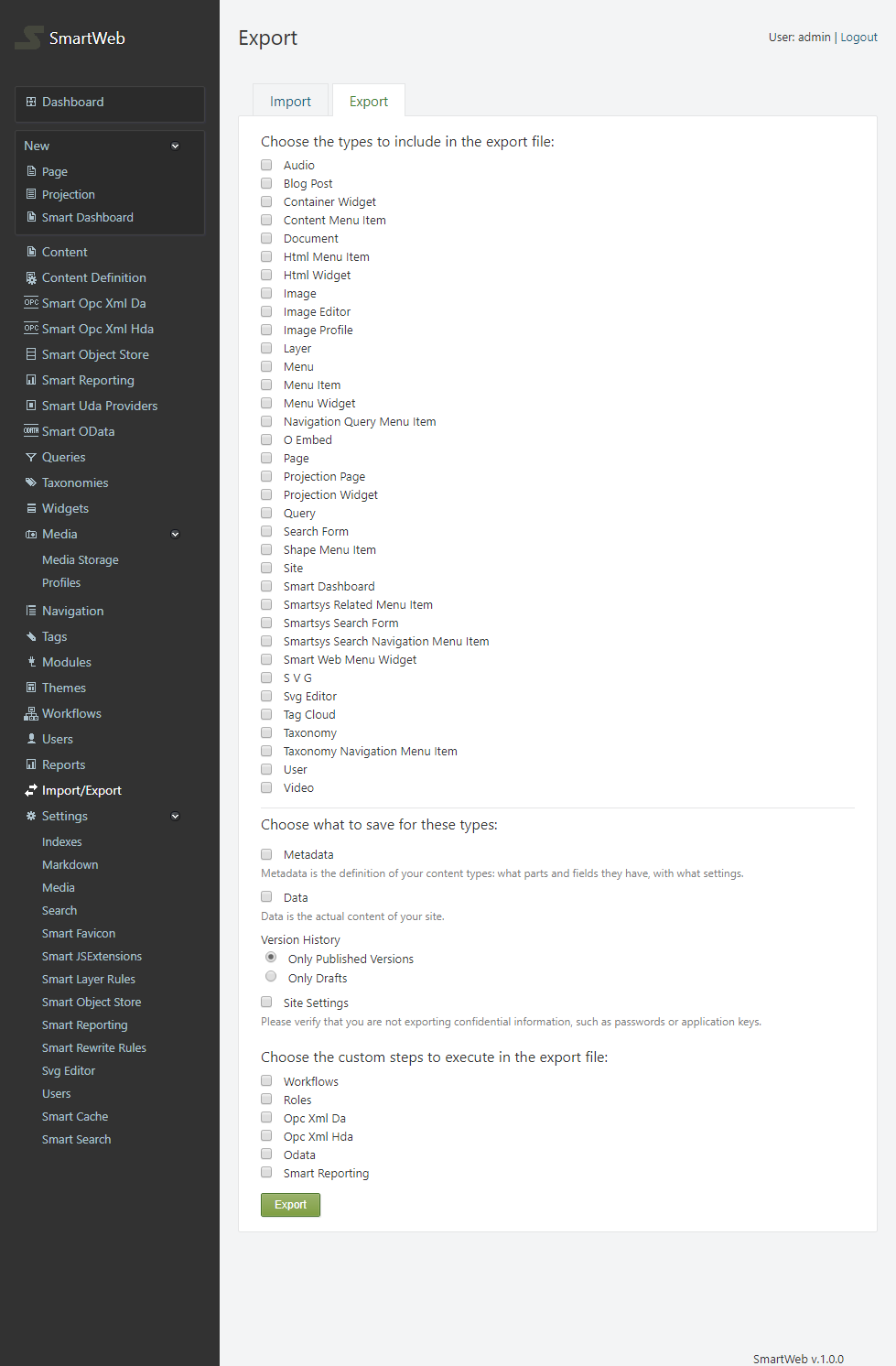
The site settings can also be exported via the Site Settings option, which verifies that you are not exporting confidential information, such as passwords or application keys. You can create a more custom export file by selecting one or more of the following options:
-
Workflows- workflows will be exported. -
Roles- roles will be exported. -
Opc Xml Da- Opc Xml Da gateways and providers will be exported. -
Opc Xml Hda- Opc Xml Hda gateways and providers will be exported. -
Odata- Odata gateways and providers will be exported. -
Epks Event Collector- Epks event collectors and statistics estimators will be exported. Before this element can be imported, Odata gateways and providers must be imported first, if they are available. -
Smart Reporting- gateways will be exported toSmart Reportingservices. Settings and reports will not be exported.
Important:
It is good practice to export every Content Type individually.
After you have selected the content you want to export, click the Export button at the bottom of the page. The browser will download a XML Document to your chosen directory.
Example:

Importing Content
To import content in SmartWEB, head back to Dashboard > Import/Export. Select the file you want to import via the Choose File button.
Example:


After the file is selected, press the Import Button. If the content was imported successfully, the following screen should be visible:

Content that already exists will be updated. Opc Xml Da, Opc Xml Hda, Odata, Epks Event Collector, and Smart Reporting are exceptions where the content wont be updated if a match is found, i.e only new content is imported.